
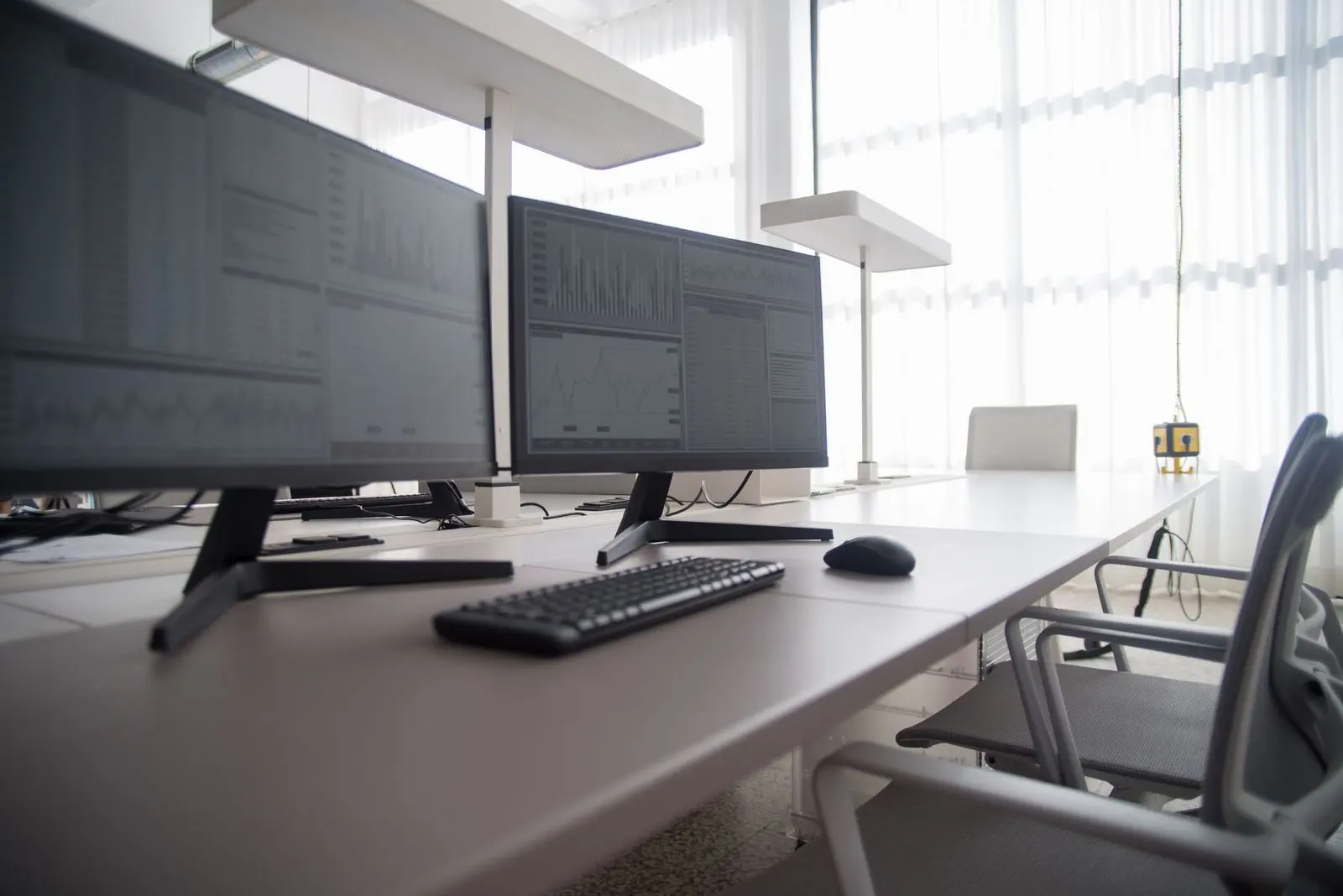
Overwhelmed by near-identical screens? Here is how to choose a monitor: pick the size and resolution, then the panel type, and check that the ports match your computer.
This guide is part of our consumer electronics buying guide, which compares the criteria that matter across everyday gadgets.
| Item | Value |
|---|---|
| Typical monitor size | 19 to 34 inches, measured diagonally |
| Most common resolution (Full HD) | 1920 x 1080 pixels |
| 1440p resolution | 2560 x 1440 pixels |
| 4K resolution | 3840 x 2160 pixels |
| 27-inch versus 24-inch screen | 25% more space |
These figures come from the buying guide published by Abt, and specifications can change, so check the source before you rely on them.
Start with screen size and desk space
Most computer monitors range from 19 to 34 inches, measured diagonally from corner to corner, according to the Abt guide. That diagonal is the screen size you see on every product page.
The same guide says a 27-inch monitor offers 25% more space than a 24-inch monitor. It also warns that prices rise dramatically for monitors larger than 27 inches, so a bigger screen is a budget decision as well as a space decision.
A YPC buyers guide points out that choosing a monitor is not simply a matter of buying the largest screen available. It advises checking the complete monitor dimensions rather than relying only on the diagonal measurement.
Before you compare models, measure these things:
- The width and depth of your desk, including the depth of the stand.
- How far your eyes will be from the screen.
- The room left for a keyboard, a laptop or other equipment.
Resolution: how many pixels do you need?
Resolution is the number of pixels a screen can show, and it decides how sharp text looks and how much content fits on the desktop. According to Abt, 1920 x 1080 is the most common resolution these days, also called Full HD or 1080p.
The next steps up are 1440p, which refers to 2560 x 1440 pixels, and 4K, which refers to 3840 x 2160 pixels. The same guide says 4K screens offer four times the detail of 1080p.

Pixel density depends on size and resolution together. The YPC guide notes that two monitors with the same resolution may not appear equally sharp if one has a much larger screen.
Higher resolutions also place greater demands on graphics hardware, particularly in games, according to the same source. It adds that you should check whether your computer supports the monitor’s native resolution and intended refresh rate.
Panel types: IPS, VA, TN and OLED
The panel technology shapes colour, contrast, viewing angles and motion. The YPC guide summarises the four common types like this:
- IPS: commonly chosen for consistent colour and broad viewing angles.
- VA: often provides stronger native contrast and deeper looking dark scenes.
- TN: traditionally used for fast gaming displays.
- OLED: can provide deep blacks, high contrast and fast pixel response.
A Make Tech Easier guide adds that IPS and OLED monitors show the best colors, but IPS panels have generally poorer contrast than VA panels. If colour work matters to you, that trade-off is worth weighing.
The YPC guide also says no panel type is automatically best for every buyer. A Thunderbolt Laptop guide suggests a sensible order: pick the panel type first, then match resolution and refresh rate to your graphics card and workflow.
Refresh rate and gaming features
The higher the refresh rate, the more fluid and responsive a screen feels. The Make Tech Easier guide says 144Hz became the standard for gaming monitors, with slightly higher rates such as 165Hz and 180Hz also seen on many models.
If you game, match the adaptive-sync feature to your graphics card. Abt recommends a FreeSync capable screen if you have an AMD graphics card, and a G-SYNC Compatible monitor for NVIDIA users.
For casual play, the same guide says to prioritize resolution over refresh rate and response time. Office and everyday use rarely needs the fastest panel on the shelf.
Ports and connections
Abt says most monitors today connect to your computer via an HDMI port, which is the same port you will find on the back of an HDTV. HDMI carries both audio and video signals through a single cable.
The ports on a new monitor should be able to support its maximum resolution and refresh rate, according to the same guide. It is also important to make sure the monitor has ports that are compatible with those on your computer.
If you dock a laptop, look at the extras. A Thunderbolt Laptop guide says more models now include USB-C with 90-140 W power delivery, built-in KVM switches, and console-friendly HDMI 2.1 features alongside DisplayPort, but you should verify the actual bandwidth on the spec sheet.
Stand, ergonomics and a final checklist
Comfort depends on how the screen can be positioned. The Make Tech Easier guide says the ergonomics of a monitor depend on its height, tilt, rotation and swivel adjustability.
Monitors also tend to outlast the computer they are plugged into. Abt says desktop monitors can often last 10, even 20 years, which is a good reason to choose carefully.
Use this order when you compare models:
- Decide what you will mainly do: office work, gaming, photo or video editing.
- Choose a size that fits your desk and viewing distance.
- Pick a resolution your graphics hardware can drive.
- Choose a panel type that suits your priorities.
- Confirm the ports, refresh rate and stand adjustment on the product page.
For sound at your desk, see our guides on how to choose headphones and how to choose a soundbar.
Frequently asked questions
Is a 4K monitor worth it?
Show answer
It can be, if your computer can drive it. Abt notes that no adjustment will let a 1440p monitor display 4K worth of pixels, while a 4K screen can be run at a lower resolution if your computer struggles.
Can I use a TV as a monitor?
Show answer
For web browsing, documents and video, many people will not notice a difference. Abt says TVs typically provide fewer input options, limited refresh rates, higher input lag and less accurate color, which makes them a poor choice for color-sensitive work and competitive gaming.
Do OLED monitors have any downsides?
Show answer
The YPC guide says OLED monitors may require additional care where static content stays visible for long periods. Think about how you will use the screen before you choose one.
Will I need an adapter to connect a monitor?
Show answer
You should not need one. Abt explains that adapters can make different connection types communicate, but matching the monitor’s ports to your computer’s ports avoids the extra piece.